
Virusdie Integration
Scan client sites for viruses and vulnerabilities with Virusdie and see each site’s status in MainWP.

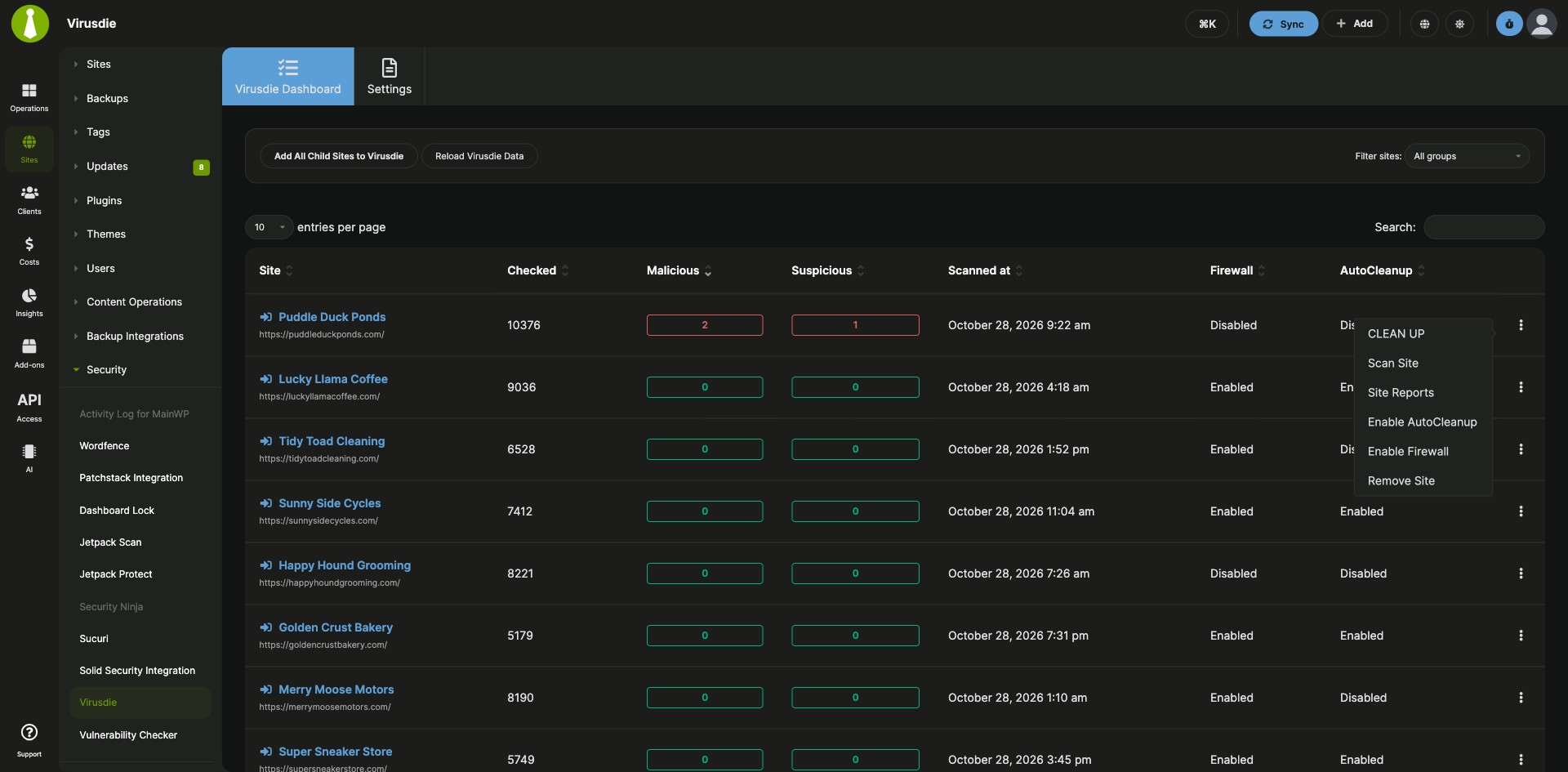


Scan all your child sites for malware with Virusdie from your MainWP Dashboard
The Virusdie Integration is a Pro MainWP add-on that gets your child sites scanned for viruses and vulnerabilities by Virusdie and shows every site’s Virusdie status on one page in your MainWP Dashboard. You create a Virusdie account from MainWP, add all your child sites to it in one click, and follow their scans there. Weekly scans and email notifications come with a free Virusdie account; on-demand scans, the firewall and AutoCleanup need a paid Virusdie plan.
What the Virusdie Integration replaces
To connect a site to Virusdie on its own, you add the site in your Virusdie account and upload a unique sync file to the site’s root directory over FTP. With the Virusdie Integration, MainWP registers your child sites with Virusdie and puts the sync file on each site for you, and every site’s Virusdie status shows on one page in your MainWP Dashboard.
Virusdie Integration features
| Feature | What it means for you |
|---|---|
| Virusdie dashboard in MainWP | See your child sites on Add-ons > Security > Virusdie. Add all of them with Add All Child Sites to Virusdie, add single sites with Add To Virusdie, or take a site out with Remove Site and then delete its sync file from the site root over (S)FTP. |
| Automatic sync file upload | When you add sites, MainWP gets your unique sync file from Virusdie and each child site saves it in its WordPress root directory, with no FTP needed. |
| Weekly scans on a free account | A free Virusdie account created through the integration covers unlimited sites with automated weekly scans and email notifications. |
| On-demand scans | On a paid Virusdie plan, start a scan with the Scan Site action, the WP-CLI command wp mainwp-virusdie scan <siteid>, or a GET request to /wp-json/mainwp/v1/virusdie/scan. The add-on checks your Virusdie plan before each scan request. |
| Firewall and AutoCleanup | On a paid Virusdie account, see whether each site’s Virusdie firewall and automatic cleanup of infected files are enabled, and turn them on or off from the site’s row. |
| Virusdie scans in Pro Reports | Add scan results to client reports built with Pro Reports. List scans with [section.virusdie.scans][/section.virusdie.scans], show [virusdie.scan.status] and [virusdie.scan.details] for each one, and the total with [virusdie.scan.count]. |
| Database health check | On MainWP Dashboard 6.2 or later, the add-on’s tables show up in the Database section of Info > Server, so you can spot missing tables or columns. |
Virusdie Integration requirements
| Item | Requirement |
|---|---|
| License | MainWP Pro (included in the Pro Bundle) |
| Virusdie account | A new Virusdie account created through the integration’s Sign-Up form. Accounts created outside the integration don’t have the API permissions needed to manage connected sites. |
| Virusdie plan | Free for weekly scans and email notifications. On-demand scans, Firewall and AutoCleanup need a paid Virusdie plan. |
| Child sites | Each child site must be able to reach your MainWP Dashboard over HTTPS to download the sync file, and your Dashboard must be able to reach each child site. |
| Database health check (optional) | MainWP Dashboard 6.2 or later |
How to set up the Virusdie Integration
Create and connect your Virusdie account
- Go to Add-ons > Security > Virusdie > Settings.
- In the Create a free Virusdie account section, enter your email address and click Sign-Up.
- Wait for the email with your one-time password. It arrives within a few minutes.
- In the Log in to your Virusdie account section, enter your email address and that password, and click Sign In. The integration gets your API credentials automatically.
Add your child sites to Virusdie
- Go to Add-ons > Security > Virusdie.
- Click Add All Child Sites to Virusdie, or use the Add To Virusdie action on the sites you want.
- If a sync file upload error appears, follow the troubleshooting steps in the docs.
Scan a site on demand
- Make sure your Virusdie account is on a paid plan.
- Go to Add-ons > Security > Virusdie and find the site.
- Click the Scan Site action.
Full instructions, including the REST API and troubleshooting: Virusdie Integration documentation.
How the Virusdie Integration works
The Virusdie Integration runs on your MainWP Dashboard and talks to the Virusdie API. When you add sites, your Dashboard registers their domains with Virusdie, downloads your sync file, and gives each child site a signed link; MainWP Child downloads the file from your Dashboard and saves it in the site’s root directory. Virusdie then scans the sites, and the add-on refreshes your account plan each time you open the Virusdie page. MainWP also has security integrations for Wordfence, Solid Security, Sucuri, Patchstack, Jetpack Protect, Jetpack Scan and Security Ninja, plus the Vulnerability Checker Extension.
Virusdie Integration FAQ
Can I use my existing Virusdie account with the Virusdie Integration?
Use a new account created through the integration’s Sign-Up form. Because of limits in Virusdie’s API, accounts created outside the integration don’t have the permissions needed to manage connected sites. If you have an older account, check its API access with Virusdie support.
Does Virusdie scan my sites on a free account?
A free Virusdie account created through the integration gets automated weekly scans and email notifications for unlimited sites. On-demand scans need a paid Virusdie plan.
Why is the Scan Site action missing?
Your Virusdie account is on the free plan, so the add-on hides Scan Site. After you upgrade at Virusdie.com, open the Virusdie page in MainWP again; the add-on rechecks your plan on each visit. On an account with both free and paid sites, Scan Site can show for a site that isn’t eligible, and Virusdie answers with Not available for this site.
What should I do when the sync file can’t be uploaded?
Reset your Virusdie sign-in if the add-on says “Unique sync file could not be uploaded”, or check access to your Dashboard if single child sites report Unauthorized or Forbidden. For the first case, sign out on the Settings page, sign up again with the same email to get a new one-time password, sign in, and add the sites again. In the second case the child site can’t download the file from your Dashboard, so check password protection, security plugins and firewalls on your Dashboard.
What do I need to pay for?
The Virusdie Integration is part of MainWP Pro (included in the Pro Bundle). A free Virusdie account created through the integration covers weekly scans and email notifications. On-demand scans, Firewall and AutoCleanup need a paid Virusdie plan, which you upgrade to at Virusdie.com.
What does the Virusdie Integration send to Virusdie?
When you add sites, the integration registers each child site’s domain with Virusdie, and the Sign-Up form sends Virusdie the email address you enter. Your Virusdie email address, API key and HMAC key are stored in your MainWP Dashboard until you sign out on the Settings page. See the Virusdie privacy policy for how Virusdie handles your data.
Where do I get support?
The Virusdie team handles issues with the Virusdie service and your Virusdie account. See virusdie.com. MainWP support handles issues with the integration.